

• Latest
DRIVER OVERRAN STACK BUFFER

5 Solutions to DRIVER OVERRAN STACK BUFFER Error in Win10

November 29, 2019
Oil and Gas

Risk Management Strategies for Oil and Gas Investors in Volatile Markets

March 18, 2026

Megaways, Cluster Pays, and Other Slot Mechanics

March 3, 2026

The Employee Welcome Pack Is No Longer an Afterthought

February 25, 2026
Silver Price Fall

Silver Price Fall in India after a Record Surge  in 2025

January 31, 2026
Analytical Thinking

Analytical Thinking That Develops with Consistent Reading

January 13, 2026
United Airlines Flight UA770

United Airlines Flight UA770 Emergency Diversion: What Really Happened?

December 23, 2025
Vitamin D3 and K2

The Science Behind Vitamin D3 and K2: How They Work Together for Your Health

December 5, 2025
MSK Conditions

The Top 10 MSK Conditions Affecting UK Workers (And How Physio Helps)

December 3, 2025

Trending walking holidays you haven’t considered for 2025

September 26, 2025

Sanctions against business: How sanctions solicitors help companies to restore their activities?

April 3, 2025
Richest Men in the World

Top 19 Richest Men in the World, 2025.

March 24, 2025
Insolvent

How to Recognise When Your Company Is Insolvent (and What to Do Next)

February 26, 2025
  • About Us
  • Contact Us
  • Write for Us
  • Privacy Policy
Wednesday, March 25, 2026
Business2News
  • News
  • Business
    • Small Business
    • Global Business
    • Entrepreneur
  • Finance
  • Technology
    • Digital Marketing
    • Social Media Marketing
    • Tech Brands
    • Gadgets
    • Gaming
    • Reviews
  • Health
  • Fashion
  • Traveling
  • Education & Job
  • More
    • Cars & Bikes
    • Sports
    • DIY Home
    • Entertainment
    • Food
No Result
View All Result
  • News
  • Business
    • Small Business
    • Global Business
    • Entrepreneur
  • Finance
  • Technology
    • Digital Marketing
    • Social Media Marketing
    • Tech Brands
    • Gadgets
    • Gaming
    • Reviews
  • Health
  • Fashion
  • Traveling
  • Education & Job
  • More
    • Cars & Bikes
    • Sports
    • DIY Home
    • Entertainment
    • Food
No Result
View All Result
Business2News
No Result
View All Result
Home DIY Home

5 Solutions to DRIVER OVERRAN STACK BUFFER Error in Win10

Editor by Editor
November 29, 2019
in DIY Home, Gadgets, Technology
0
DRIVER OVERRAN STACK BUFFER

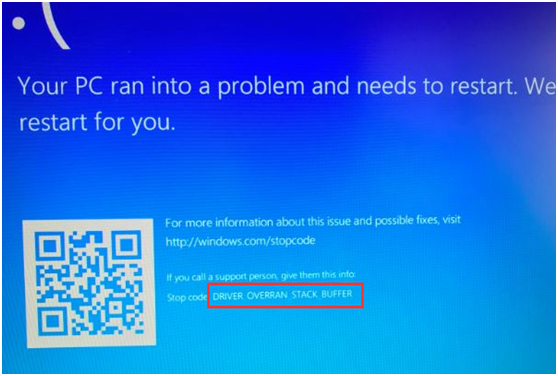
As one of the common blue screen errors of Windows, a driver overran stack buffer indicates that a driver has overrun a stack-based buffer, and your PC will shut down and restart automatically. This blue screen error looks like the following image.
driver overran stack buffer

The DRIVER OVERRAN STACK BUFFER might appear for various factors including overclocking, system files error, incompatible peripherals,s and so on. This error might come forth unexpectedly and bring other problems for your Windows PC. Fortunately, you can fix it by yourself through the solutions provided below.

Tip: To avoid any data loss, make a backup is necessary before fixing this blue screen error. You can choose to back up date and even the operating system. Here is a simple guide for you.

Table of Contents

  • Solution 1: Update Your Windows
  • Solution 2: Run Blue Screen Troubleshooter
  • Solution 3: Perform SFC Scan
  • Solution 4: Check Your Hard Drive
    • #1 Use Command Prompt
    • #2 Use MiniTool Partition Wizard
  • Solution 5: Run Windows Memory Diagnostic Tool

Solution 1: Update Your Windows

Both your hardware and software can lead to BSOD errors including DRIVER_OVERRAN_STACK_BUFFER, but Windows updates can fix most of the known errors.

Commonly, your windows will check, download and install updates automatically. However, some updates might not be installed for odd reasons, so you’d better check Windows update manually.

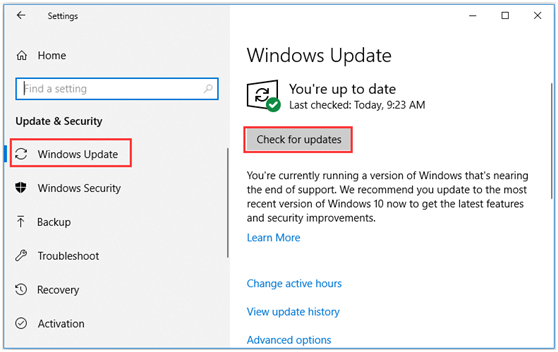
Just open Windows Settings and click on Update & security. In the Windows Update section, click Check for updates in the right pane.
DRIVER OVERRAN STACK BUFFER

Once any available updates are checked, your Windows will install them automatically. When Windows finishes installing the latest updates, please restart your computer to check whether the error is fixed.

Solution 2: Run Blue Screen Troubleshooter

Windows Troubleshooter is a built-in tool used to deal with various system errors. As for BOSD errors, there is a Blue Screen troubleshooter.

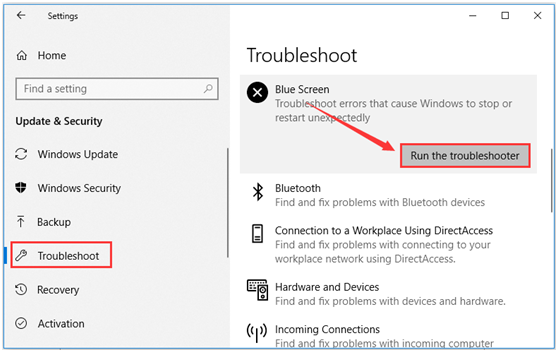
  • Step 1: Open Windows Settings and go ahead to Update & Security.
  • Step 2: Switch to Troubleshoot in the left pane.
  • Step 3: Locate and click Blue Screen in the right pane, and then click Run the troubleshooter.
DRIVER OVERRAN STACK BUFFER

The tool will start detecting problems. If any problems are checked, just follow the onscreen instructions to complete the troubleshooting.

Solution 3: Perform SFC Scan

As the system file is one of the factors causing this error, another feasible way to fix it is by performing an SFC scan. This tool can check corrupted system files and replace them with normal ones.

Follow the steps below to run the SFC scan:

  • Step 1: Run Command Prompt. Input the command SFC/scan now and press Enter.
  • Step 2: After the scanning process is finished, restart the PC to see if the error is fixed.
  • Step 3: If the error still exists, you need to run the DISM command to repair the system image. In Command Prompt, type command DISM /Online /Cleanup-Image /Restore Health and press Enter.
  • Step 4: When the scanning is completed, restart your PC and perform the SFC scan again.

In this way, the corrupted system files should be repaired and your computer should work smoothly.

Solution 4: Check Your Hard Drive

DRIVER OVERRAN STACK BUFFER can also appear if the Master Boot Record (MBR) or the file system is corrupted on your hard drive. To remove this error in this case, you need to fix MBR and check your file system.

You can choose to use Windows built-in tool Command Prompt or a third-party program. The specific steps for both tools are provided below.

#1 Use Command Prompt

You need to run Command Prompt in Advanced Startup options without normally running your computer. Here are detailed tutorials.

  • Step 1: Restart your computer while holding the Shift key to enter Advanced Startup.
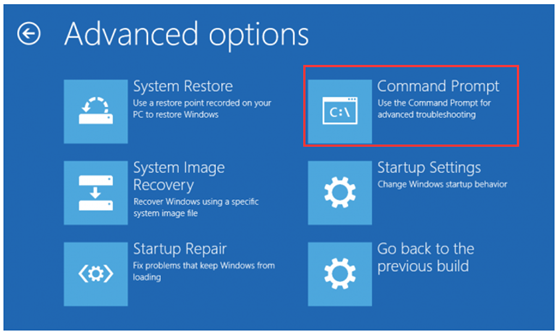
  • Step 2: Choose Troubleshoot and then Advanced Options. When you get the following interface, choose Command Prompt.
driver overran stack buffer
  • Step 3: Input the following commands and press Enter key after each to fix MBR:
  • bootrec.exe /rebuildbcd
  • bootrec.exe /fixmbr
  • bootrec.exe /fixboot
  • step 4: To check the file system of your hard drive, you need to run chkdsk command as well. Just enter chkdsk /r *: (* refers to the drive letter of the specific partition for which you want to check the file system) and press Enter.

Note: Please make sure that the selected partition has a drive letter, or this command will fail to work on this partition.

  • Step 5: Run chkdsk command for every partition. Then, restart your computer to check if the issue is removed.

#2 Use MiniTool Partition Wizard

MiniTool Partition Wizard provides a Check File System feature that can help you resolve DRIVER OVERRAN STACK BUFFER.

You need to use the Bootable Media Builder of MiniTool Partition Wizard since your computer cannot boot.

  • Step 1: Install and register the application on a normally running computer to get its main interface.
  • Step 2: Click the Bootable Media icon to create a bootable disc.
  • Step 3: Boot the problem from the bootable disc by setting it as the first boot device. Then, enter the main interface of MiniTool Partition Wizard.
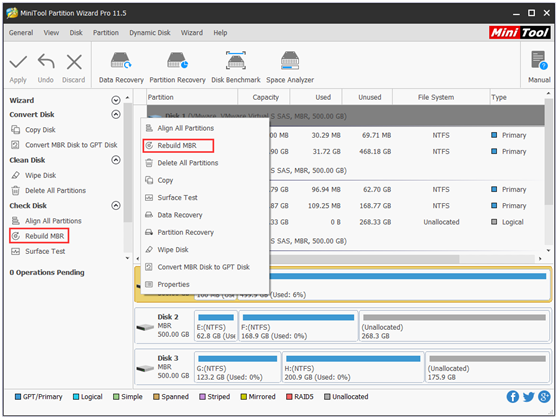
  • Step 4: Select the hard drive whose MBR is corrupted and choose Rebuild MBR for the left pane. Alternatively, you can right-click the drive and choose Rebuild MBR from the context menu.
driver overran stack buffer
  • Step 5: Click Apply button to perform the pending operation.
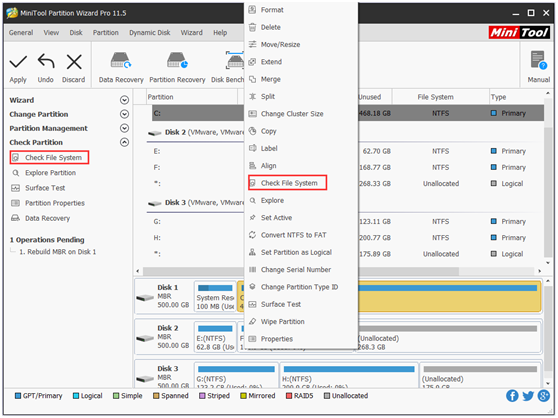
  • Step 6: Now, select a partition and choose Check File System from the left pane, or right-click it and select the feature from the context menu.
driver overran stack buffer
  • Step 7: Choose Check & fix detected errors and click Start.
  • Step 8: After the process is completed, restart your computer from your local disk. The error should be fixed completely if it’s caused by a corrupted file system or MBR.

Solution 5: Run Windows Memory Diagnostic Tool

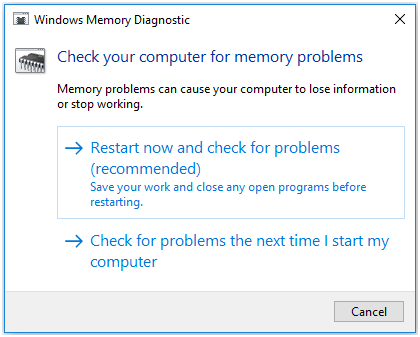
The faulty memory module can also cause blue screen errors. You can check memory errors using Windows Memory Diagnostic Tool.

To open this tool, press Windows + R to open the Run window, and type mdsched.exe and click OK. After saving your work, click Restart now and check for problems (recommended).
DRIVER OVERRAN STACK BUFFER

This operation will restart your Windows and start checking for memory module errors. Then, just wait until the process is completed.

Hope the solutions introduced in this post can help you easily fix DRIVER OVERRAN STACK BUFFER. To get more details of and solutions to this BOSD error, you can check this post.

  • Risk Management Strategies for Oil and Gas Investors in Volatile Markets
  • Megaways, Cluster Pays, and Other Slot Mechanics
  • The Employee Welcome Pack Is No Longer an Afterthought
  • Silver Price Fall in India after a Record Surge  in 2025
  • Analytical Thinking That Develops with Consistent Reading
Tags: PC/LAPTOPSoftware UpdateWindows 10
No Result
View All Result

Most Popular

Sanctions against business: How sanctions solicitors help companies to restore their activities?

April 3, 2025
Richest Men in the World

Top 19 Richest Men in the World, 2025.

March 24, 2025
Insolvent

How to Recognise When Your Company Is Insolvent (and What to Do Next)

February 26, 2025

Trending walking holidays you haven’t considered for 2025

September 26, 2025
Girl with Dimples

11 Reasons Why You Should Marry a Girl with Dimples

March 19, 2024
Vitamin D3 and K2

The Science Behind Vitamin D3 and K2: How They Work Together for Your Health

December 5, 2025
Load More

Navigate Site

  • About Us
  • Contact Us
  • Write for Us
  • Privacy Policy

Brilliantly

SAFE!

business2news.com

Content & Links

Verified by Sur.ly

2022
No Result
View All Result
  • News
  • Business
    • Small Business
    • Global Business
    • Entrepreneur
  • Finance
  • Technology
    • Digital Marketing
    • Social Media Marketing
    • Tech Brands
    • Gadgets
    • Gaming
    • Reviews
  • Health
  • Fashion
  • Traveling
  • Education & Job
  • More
    • Cars & Bikes
    • Sports
    • DIY Home
    • Entertainment
    • Food

© 2021- Business2news.

We use cookies on our website to give you the most relevant experience by remembering your preferences and repeat visits. By clicking “Accept”, you consent to the use of ALL the cookies.
Cookie settingsACCEPT
Manage consent

Privacy Overview

This website uses cookies to improve your experience while you navigate through the website. Out of these, the cookies that are categorized as necessary are stored on your browser as they are essential for the working of basic functionalities of the website. We also use third-party cookies that help us analyze and understand how you use this website. These cookies will be stored in your browser only with your consent. You also have the option to opt-out of these cookies. But opting out of some of these cookies may affect your browsing experience.
Necessary
Always Enabled
Necessary cookies are absolutely essential for the website to function properly. These cookies ensure basic functionalities and security features of the website, anonymously.
CookieDurationDescription
cookielawinfo-checbox-analytics11 monthsThis cookie is set by GDPR Cookie Consent plugin. The cookie is used to store the user consent for the cookies in the category "Analytics".
cookielawinfo-checbox-functional11 monthsThe cookie is set by GDPR cookie consent to record the user consent for the cookies in the category "Functional".
cookielawinfo-checbox-others11 monthsThis cookie is set by GDPR Cookie Consent plugin. The cookie is used to store the user consent for the cookies in the category "Other.
cookielawinfo-checkbox-necessary11 monthsThis cookie is set by GDPR Cookie Consent plugin. The cookies is used to store the user consent for the cookies in the category "Necessary".
cookielawinfo-checkbox-performance11 monthsThis cookie is set by GDPR Cookie Consent plugin. The cookie is used to store the user consent for the cookies in the category "Performance".
viewed_cookie_policy11 monthsThe cookie is set by the GDPR Cookie Consent plugin and is used to store whether or not user has consented to the use of cookies. It does not store any personal data.
Functional
Functional cookies help to perform certain functionalities like sharing the content of the website on social media platforms, collect feedbacks, and other third-party features.
Performance
Performance cookies are used to understand and analyze the key performance indexes of the website which helps in delivering a better user experience for the visitors.
Analytics
Analytical cookies are used to understand how visitors interact with the website. These cookies help provide information on metrics the number of visitors, bounce rate, traffic source, etc.
Advertisement
Advertisement cookies are used to provide visitors with relevant ads and marketing campaigns. These cookies track visitors across websites and collect information to provide customized ads.
Others
Other uncategorized cookies are those that are being analyzed and have not been classified into a category as yet.
SAVE & ACCEPT